pulse, common issues and solutions
Understanding How Pulse Works
It's important to understand how Pulse works to identify potential issues. Pulse monitors everything you type on your computer (without storing anything, just keystrokes) so that if certain conditions are met - minimum characters, minimum words, and inactivity time (plus customizing whether an app should be monitored or not), all of which is customizable - it will save the writing session and include it in Pulse's statistics.
For example, if you write a single word and stop for longer than the defined Inactivity time, and you have configured a valid session to be considered from 4 words, that word won't be counted - it's not considered a valid session and therefore won't be saved.
Also note that the menu bar data updates at the interval you define in "Update interval".
Now that you know how it works, let's look at the most common problems.
Pulse is not saving writing sessions
If the menu bar data isn't updating, shows zero, (or if there is any data in the Statistics section) or hasn't shown new data for a while, there are several possibilities, but the most common is a permissions issue in MacOS.
In any case, it's important to follow the steps we indicate here to figure out what's happening and what works and doesn't work in your environment.
Verifying That Pulse Can Monitor the Keyboard
First, we need to check if Pulse can monitor what you type. The easiest way to check this is to access "Live Metrics".
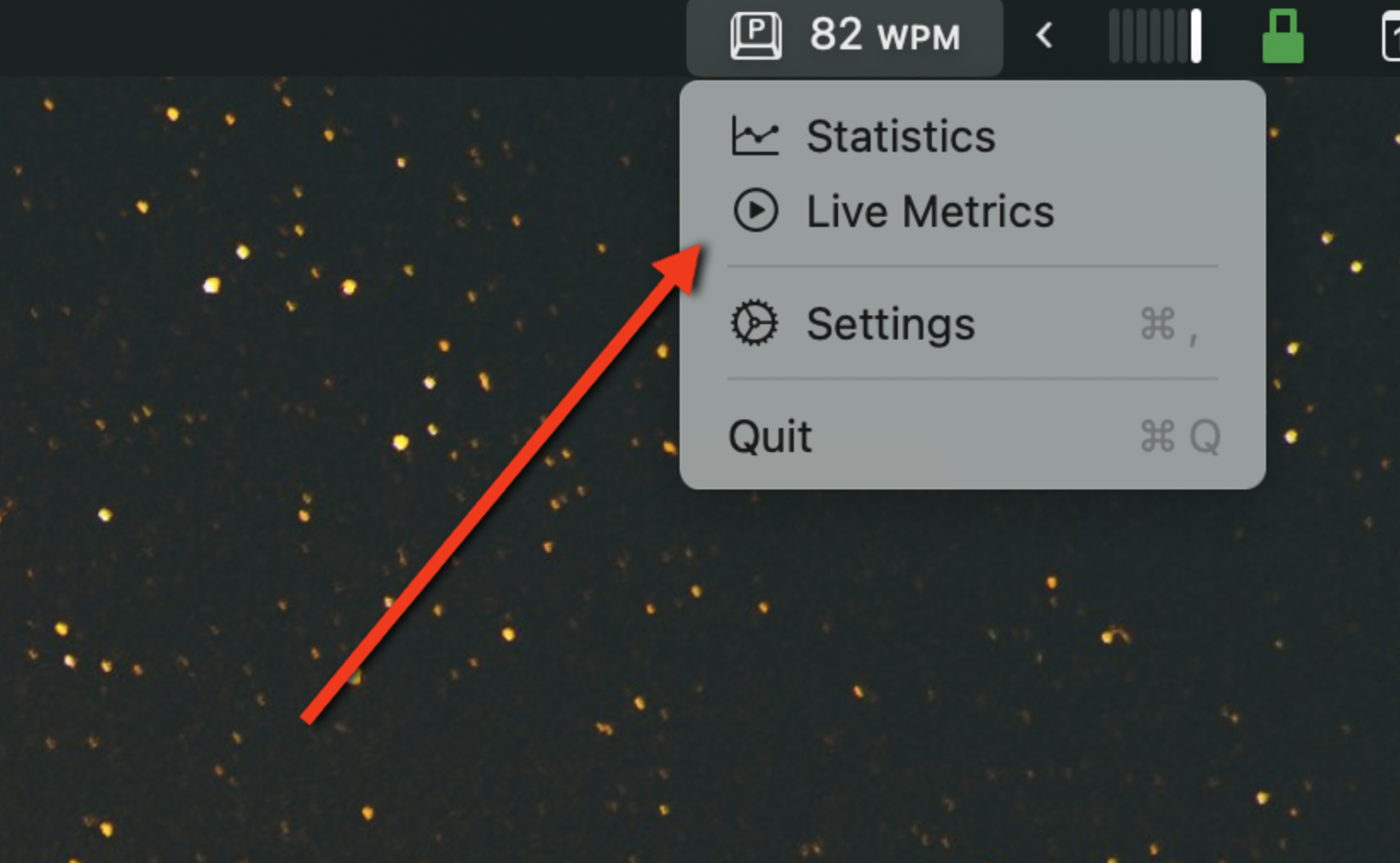
Live Metrics allows you to see typing speed and other data in real-time; in this case, it will help us know if Pulse is getting information from your keyboard.
As you can see in the video, while I type, Pulse shows the speed in real-time, so if this is your case, it's not a permissions problem, and we can move on to Checking Writing Session Settings and Menu Bar Update Interval.
But if instead it shows zero, it's a permissions problem. The first thing to do is close and reopen Pulse, and if it persists, we move on to Checking accessibility permissions.
Checking Accessibility Permissions
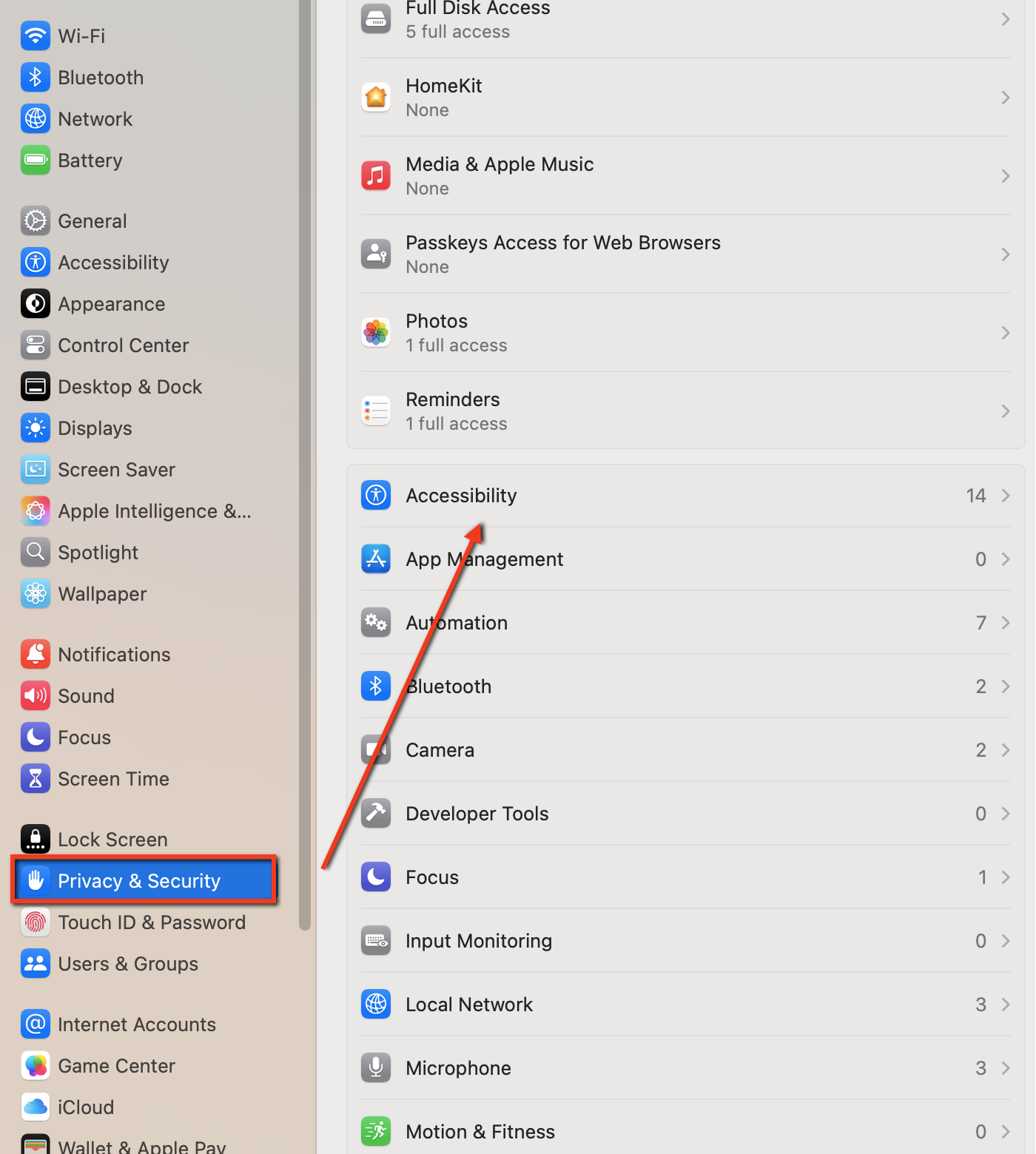
Access System Settings, Privacy & Security section, and click on Accessibility.
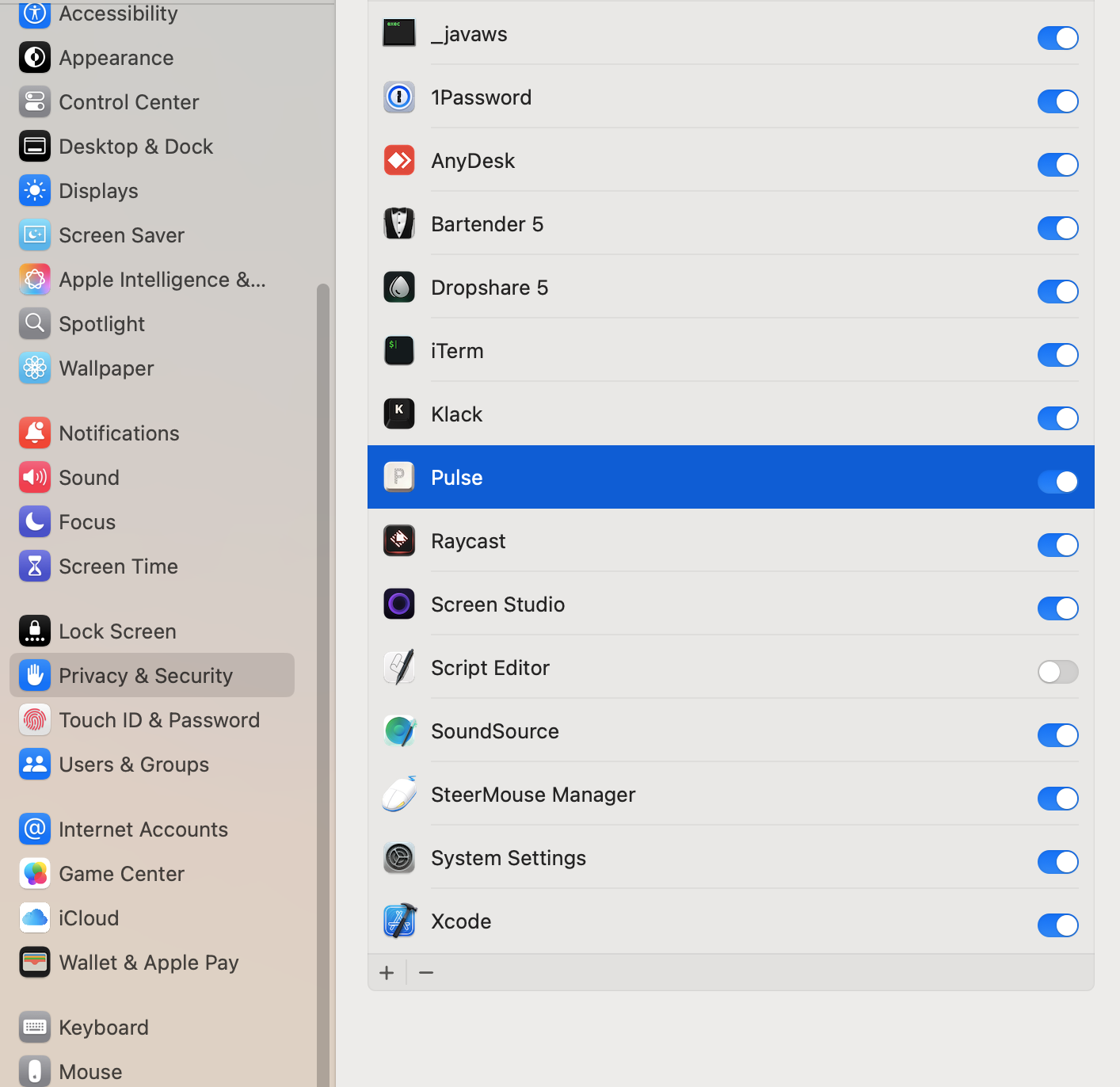
Check if Pulse appears in the list and is active, if it's not, click on the + button to add it, or enable it with the toggle.
Reassigning Accessibility Permissions
Sometimes it doesn't work even when it's in the list, and toggling it on and off doesn't help... yes, MacOS can be that complicated sometimes.
Therefore, do the following:
- Quit Pulse from the menu bar.
- Remove Pulse from the list with the - button.
- Restart your Mac.
- Go to Settings again and add Pulse with the + button.
- Open the Pulse app and check if it's working with Live Metrics.
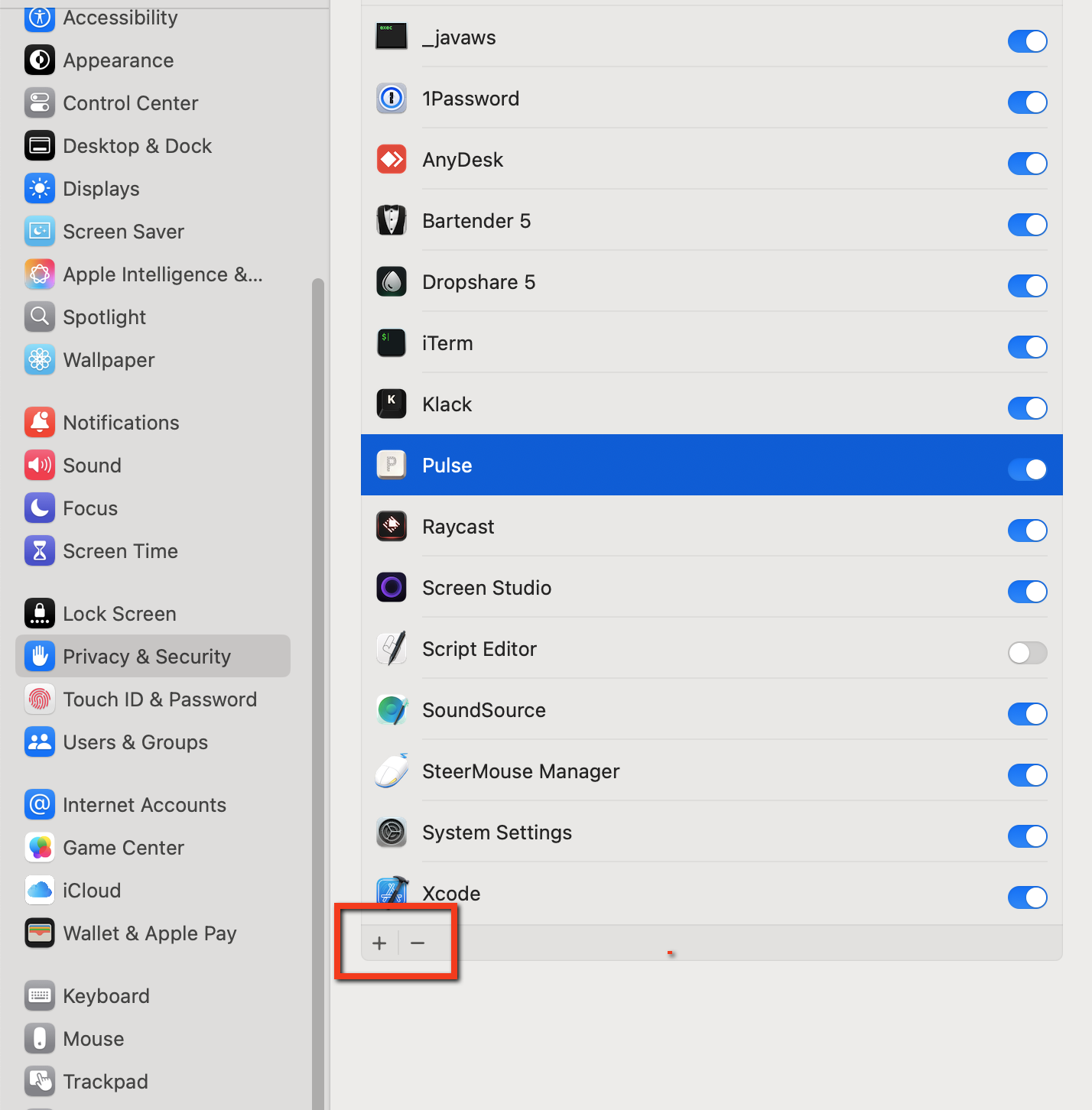
After removing and adding again, close Pulse, reopen it, (or even restart your Mac) and test with Live Metrics, and it should work.
Checking Writing Session Settings and Menu Bar Update Interval
As we saw before, if Live Metrics works and shows the speed, it means Pulse is working correctly. In this case, it's most likely that your configuration doesn't match your writing method, and that's why sessions aren't being saved.
The simplest test is to reopen Live Metrics. When you write, you can see that when you pause, the session is saved when we stop (more about inactivity time below). It appears in green if it was saved, and in red if it wasn't saved. When it's red, it means that the minimum conditions you've set in the configuration aren't being met, and therefore you need to adjust them to match your writing style.
Note: with Live Metrics, you can see how Pulse works in real-time, but Pulse does the same when you doesn't have it open.
Additionally, from Live Metrics you can view the latest sessions that were saved.
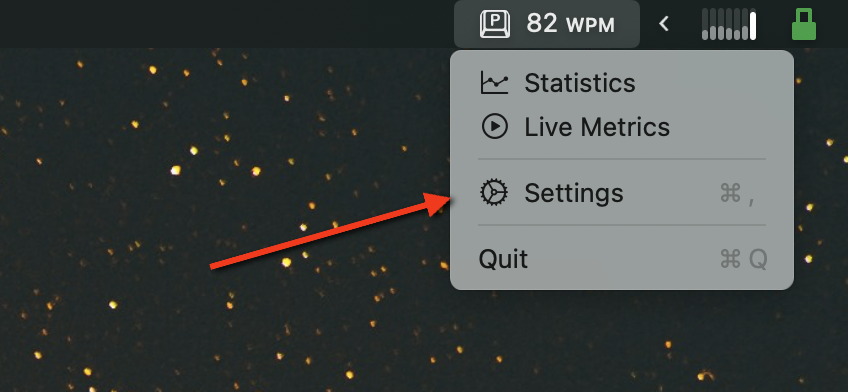
Access Settings in Pulse.
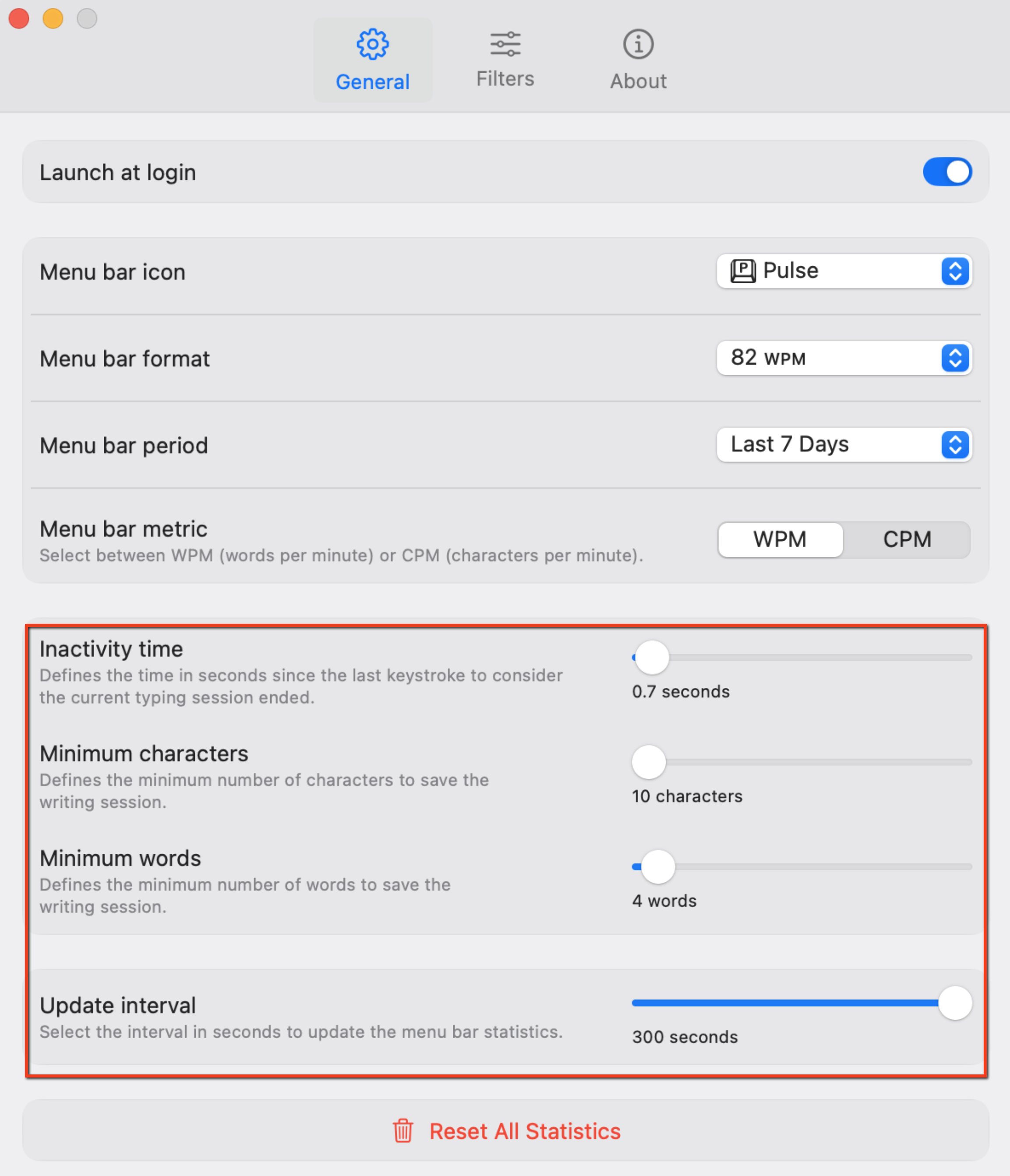
Not all sessions should be saved, this would falsify the statistics, for example,it doesn't make sense to measure speed only in a single word, so we allow you to define a configuration that adapts to your writing style to discard data that doesn't make sense.
Check the following configuration to adapt to your writing style:
- Inactivity time: This is the time in seconds to consider that you've stopped writing. For example, you start writing in a chat; at some point, we need to consider that the writing "session" has ended, such as when you pause for 1 or 2 seconds. The time will depend on your habits, how fast you type, etc. When Pulse detects that you've been inactive longer than the maximum time set, it will mark that session as complete and check if what you've written exceeds the minimum characters and words defined in the following options.
- Minimum characters: No session with fewer characters than specified here will be saved. Adjust this according to your writing style.
- Minimum words: Same as for characters, but with words.
- Update interval: Pulse monitors all typing, but the menu bar data only updates at the interval you specify here to avoid resource usage.
Verifying the Selected Operating Mode
Pulse has two modes, inclusion and exclusion mode, found in Settings / Filters.
In Inclusion mode, Pulse will only save sessions that meet the conditions you set. For example, in the screenshot below, it will monitor all apps except for Xcode and Iterm.
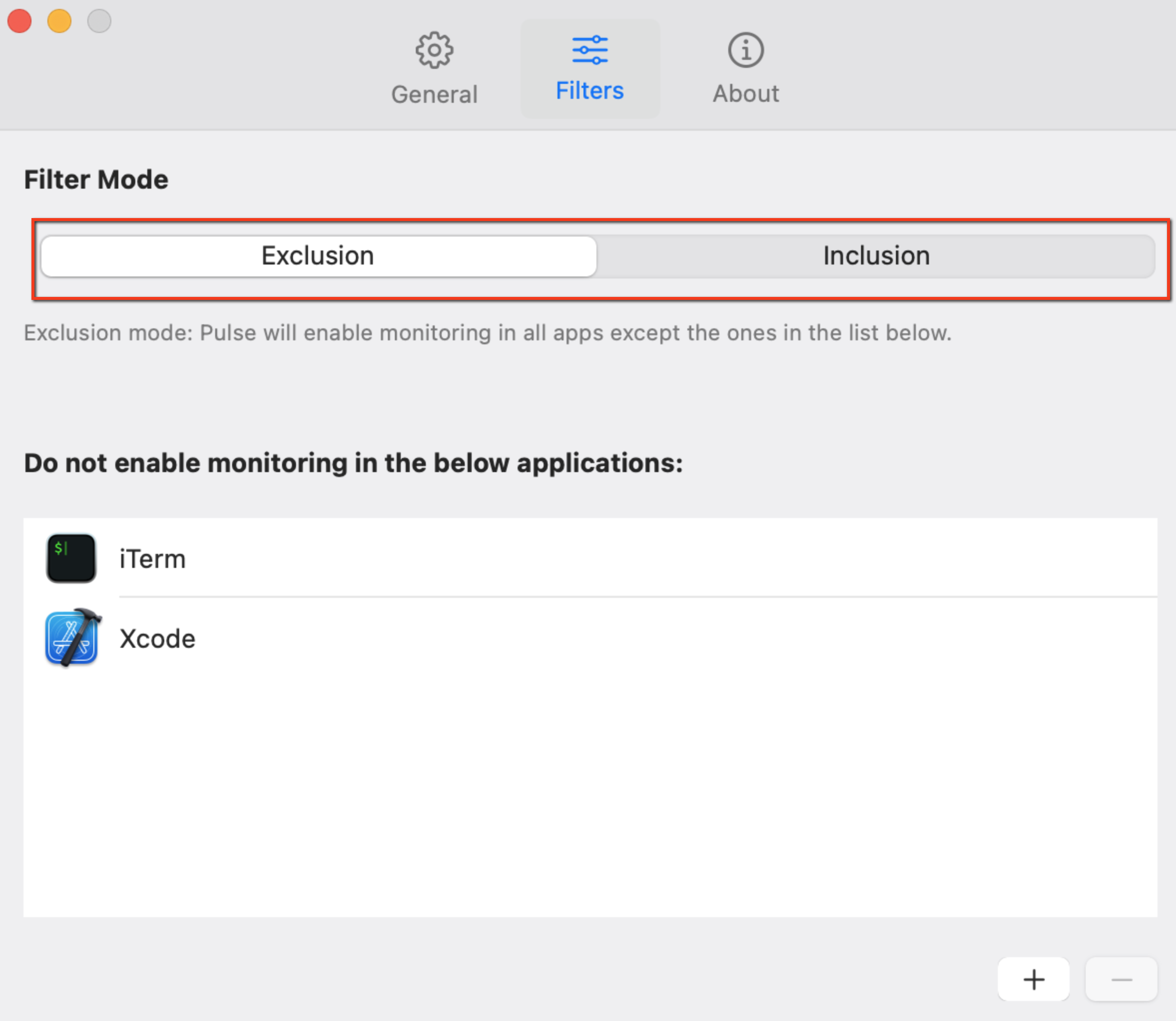
But if you're in Exclusion mode, Pulse will only save sessions for the apps added to the list, so take this into account when checking if Pulse is working or not.